
Using the Database
Selected measurements can be saved dynamically in the results database.
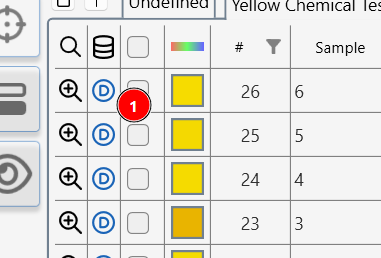
Results saved in the database are marked with a “D” (1)
 ]
]
Measurements marked with a D in the database column are saved in the Appearance Elements database.
To add measurements to the database
- Click on the dashed circle next to the measurement.
- Select multiple measurements in the selection column and click the Save to Database icon.
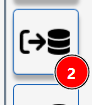
Several results can be saved in the database by selecting them (1) and clicking the Save to Database icon (2)]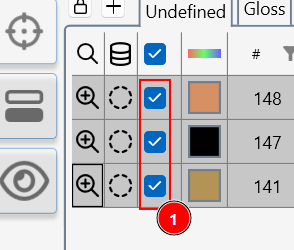
Changes to text or batches made in the Results Table will automatically be updated in the database.
Database viewer
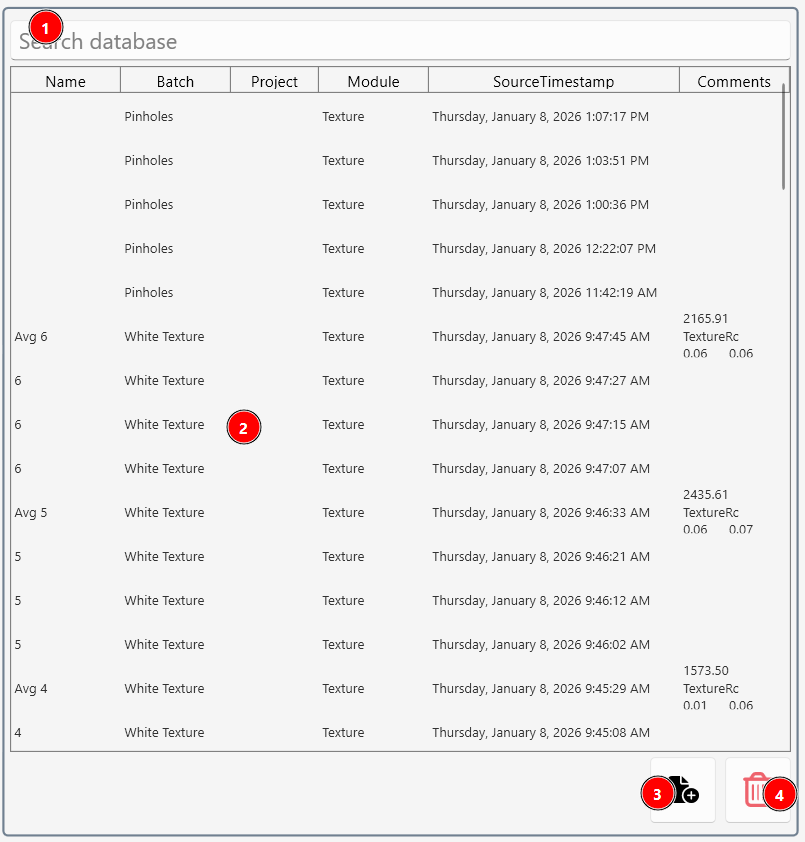
To access the data base view click the Data Base View icon (1)
 .
.
Measurements saved in the database are listed.
- Search the database (1)
- Double click a measurement (2) saved in the database to restore it to the measurement view.
- Highlight an entry and click (3) to add it to the data table.
- Highlight a measurement and click the delete icon (4) to remove it from the database.