Batching Results
Working with batches in Appearance Elements
Batches in Appearance Elements are used to group related measurements so that data can be analysed, compared and reported more effectively. Batches appear as tabs (1) at the top of the data table, and the batch name is also shown in the Batch column (2) for each measurement row.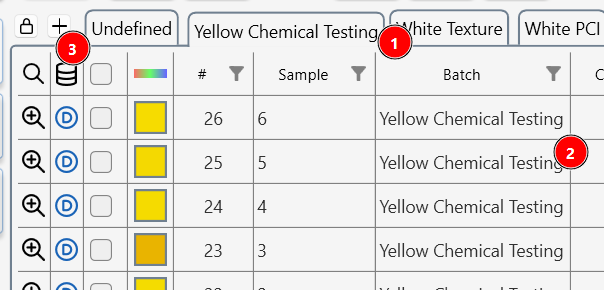
Creating and naming batches
- Click the +(3) button above the data table to open a new batch tab, then enter a name for this batch.
- Alternatively, type a new batch name directly into the Batch column for any measurement; this automatically creates the batch and assigns that measurement to it.
Adding measurements to a batch
- When you take a new measurement while a specific batch tab is active, that measurement is automatically added to the currently selected batch.
- You can also drag and drop existing measurements from the table onto a batch tab to move or copy them into that batch.
Creating a batch from selected measurements
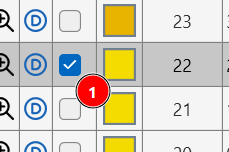
- To build a batch from existing data, select the desired measurements using the selection box (1) in the table.
- Right‑click on the selection and choose Create batch; a new batch is created and all selected measurements are assigned to it.