
Measuring Linear Scratches
Select a measurment mode
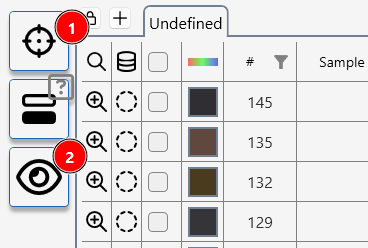
To measure polishing quality with default or last used parameters, press (1) a measurment will be made and the results will be added to the data table.
To adjust parameters befoe starting a measurement, click the interactive measurement icon (2).
Analysis Preview
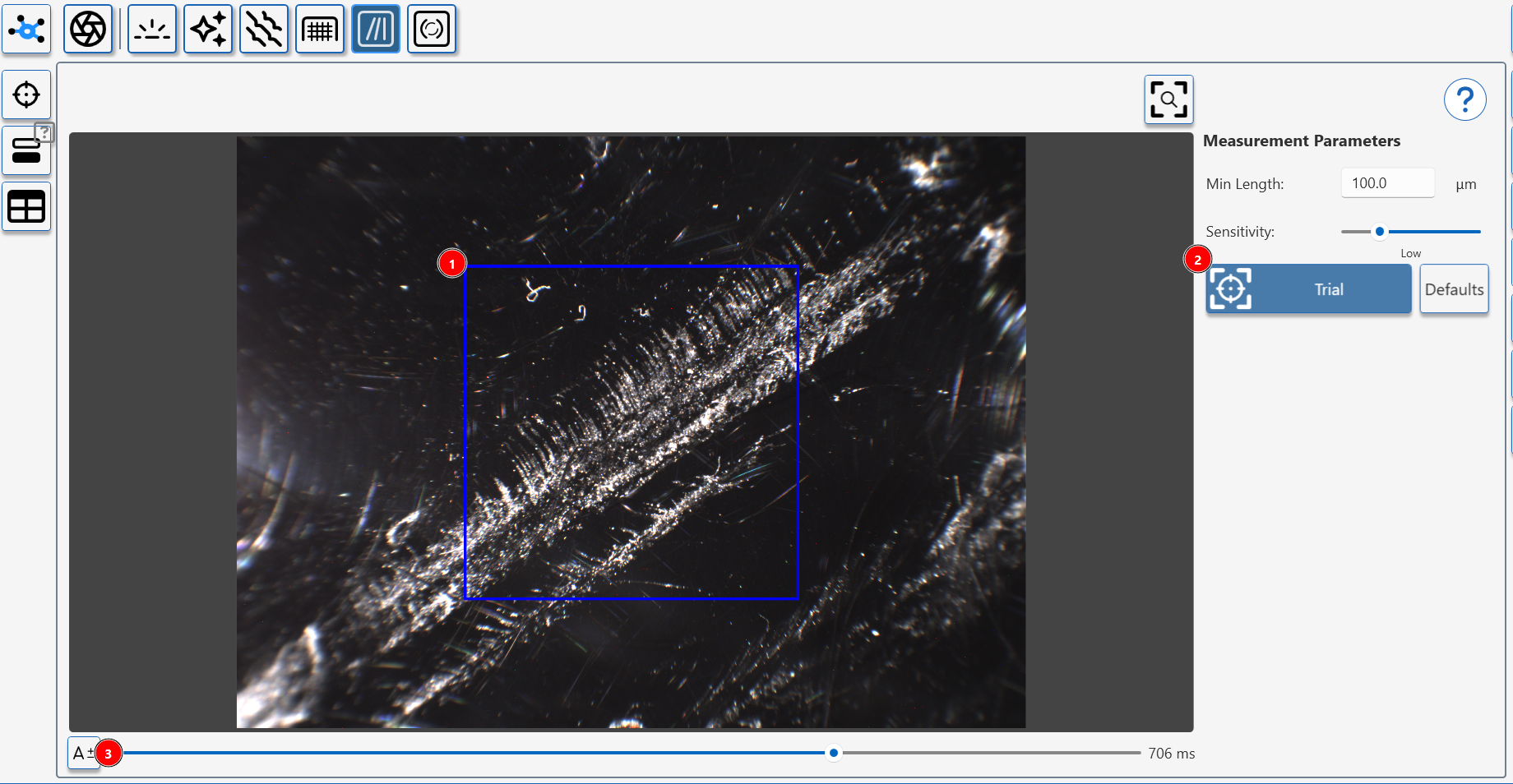
The analysis preview shows a live view from the observer camera.
A blue box (1) shows the measurement area.
Adjust settings (3) to change camera exposure settings (changing exposure in this view does not effect measurement).
Press (2) to take a a trial measurement.
Measurement Preview
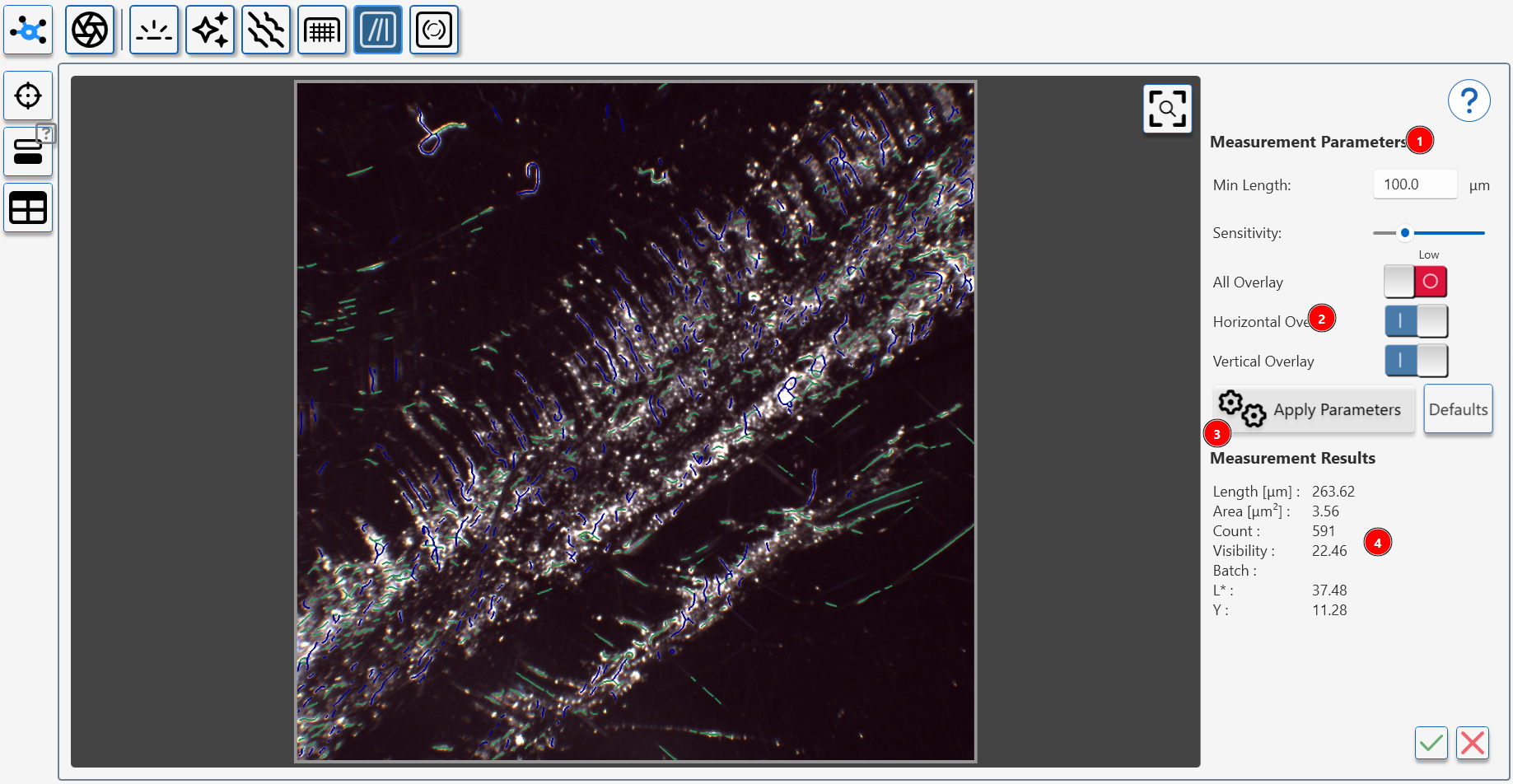
When a preview measurment has been completed the results are shown in a preview window.
The left image shows the identified damage on the surface, adjusting the measurement parameters (1) will change the amount of detected damage.
How to adjust Polishing Quality Parameters
The overlay control (2) highlight 'horizontal', 'vertical' or 'all' scratches. These values are recorded seperately in the measurement data and can be used to detect directional damage in the surface.
To recalculate the measurement results (4) adjust the parameters (1) and press apply parameters icon (3).
Complete or restart measurement
To complete the measurement process, press the tick icon (1)- the trial measurement values will be transfered to the data table.
To restart the process press the cancel icon (2).
Review measurement results
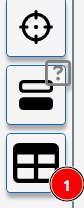
To review measurments in the table, press the table icon (1).