Instrument Controls
| Model | 20° Gloss | 60° Gloss | 85° Gloss | 45° Gloss |
|---|---|---|---|---|
| HIGH GLOSS | GLOSS FINISHES | LOW GLOSS FINISHES | SPECIALTY ANGLE | |
| Novo-Gloss Trio | - | |||
| Novo-Gloss 60 | - | - | - | |
| Novo-Gloss 45 | - | - | - |
A detailed product manual can be found on the USB supplied with the instrument.
Or it can be downloaded from: www.rhopointinstruments.com/help-services/resources/
Basic Operations
Navigation
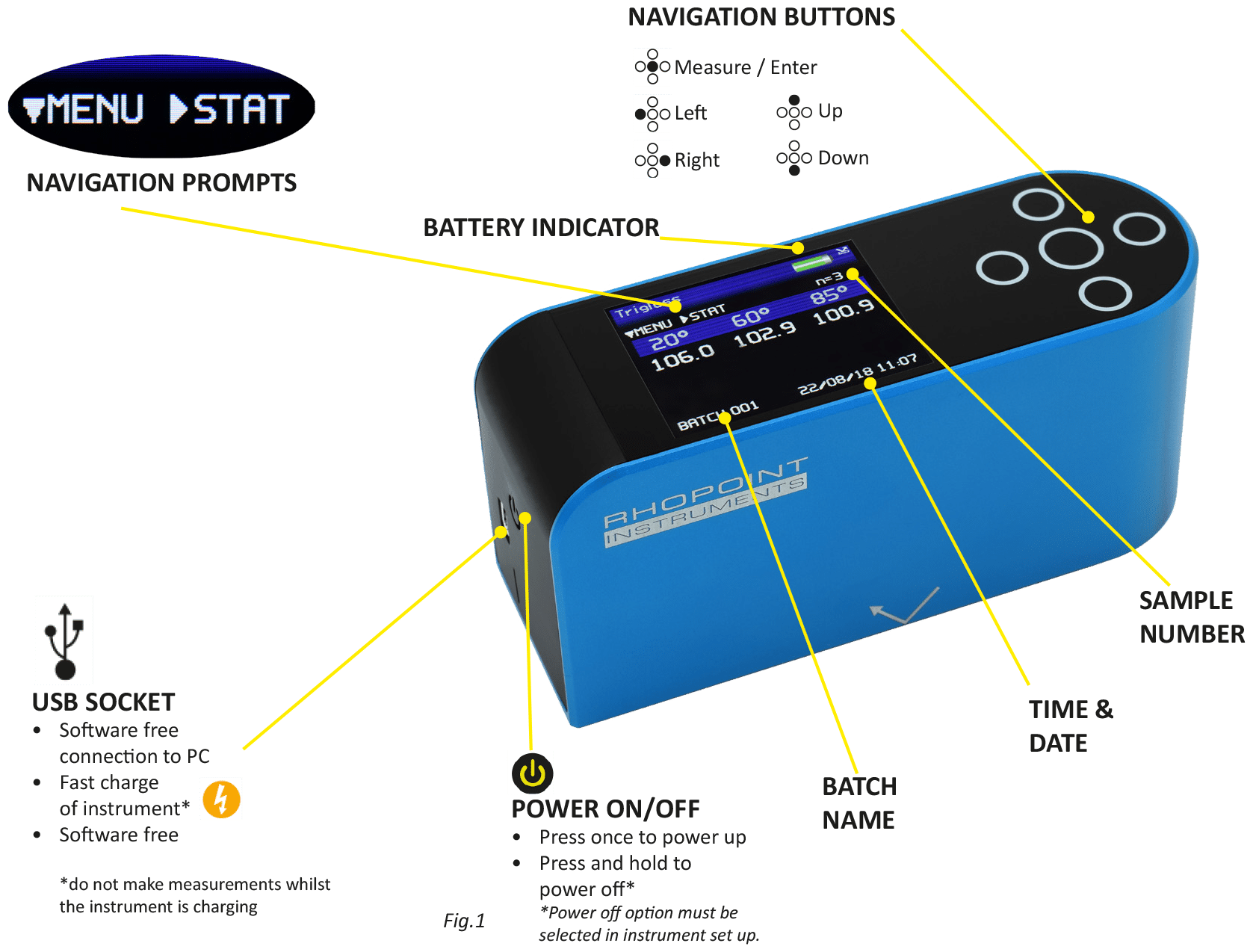
- Available navigation options are displayed as prompts on the top left of every screen
- Use the indicated button to access required menus and options
- Press left button twice to return home from any menu.
Measurement
- Place instrument measuring head on the surface to be measured. Ensure that the measurement spot is completely covered by the surface to be measured. For more repeatable testing, use the supplied positioning template to ensure that measurements are made in the same position across multiple samples.
- Press a measurement button (as shown in fig.1) to take a measurement.
Statistics
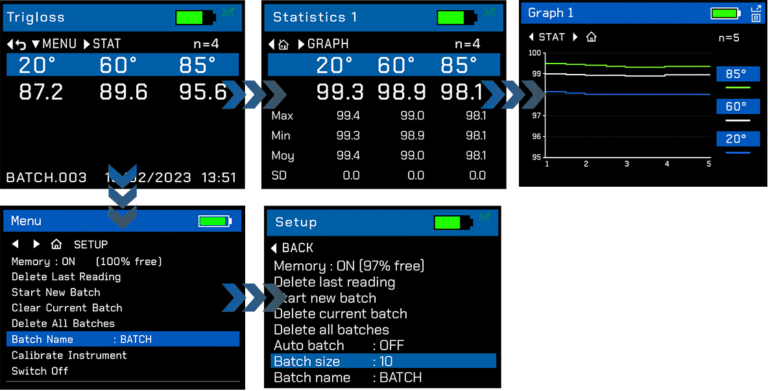
- Press right button to view statistics
- Press right button again to view graphs
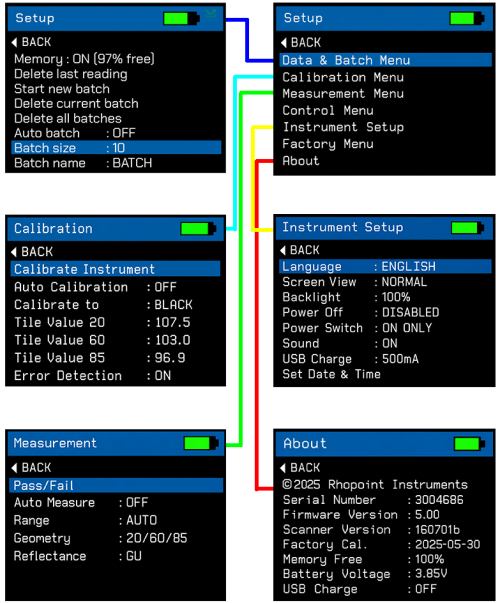
- Advanced options are available in: MENU > SETUP > BATCH MENU
Auto Calibration*
- Ensure the calibration tile is clean and undamaged
- Optics should also be checked for cleanliness
- Place the instrument on the tile holder
- Press the central button
- Follow the on-screen prompts
* Auto calibration must be enabled. MENU > SETUP > CALIBRATION MENU
RECALIBRATION
Rhopoint recommend that the Rhopoint IQ Flex 20 should be regularly serviced and calibrated. This will ensure reliable, accurate and consistent measurements are given. For more information or to book a service / calibration please visit: www.rhopointinstruments.com/help-services/calibration-servicing/
Advanced Operations
Data Transfer
- Connect instrument to PC via USB cable
- Open ‘IQ-METER’ USB drive
- Open ‘DATA’ folder
- Each stored batch has an individual folder
- Batch Statistics are stored as ‘Stats.csv’
- Individual readings are stored separately in .csv format
- Copy, view and delete data as required.
- A summary of all measured parameters for each reading is stored as ‘summary.csv’
Automatic Measurement
- Navigate to MENU > SETUP > Measurement Menu > Auto Measure
- Select measurement interval of 2/5/10/30/60 seconds
- Press
to go back until the main measurement screen is displayed - Press
to start and stop automatic measurements
User Defined Batches
- Connect your instrument to a PC via a USB cable
- Open the ‘IQ-METER’ drive in your file explorer
- Open the ‘CONFIG’ folder
- Edit ‘batches.txt’
- End by pressing RETURN
- Save file
Instrument Settings
Quick Report App Connection
- Open the Rhopoint Quick Report App in Google Chrome or on a compatible mobile device
- On the instrument, ensure Bluetooth is switched on and set the BT mode to DATA
- In the app, press the pairing/link button in the top right-hand corner
- Select Connect from the drop-down menu
- Select the instrument from the available devices
- When the connection button turns green, the instrument is connected and the app is ready to receive measurements
- Take measurements on the instrument *
- Received readings will be displayed in the app for review and reporting
* For full instructions on installation, device connection, measurement transfer, data export and report creation, refer to the Rhopoint Quick Report App Manual.
The Quick Report App is available for Windows, Mac, Linux, Android and iOS; it can be run in Google Chrome or installed on a compatible device. On first connection, users are prompted to register and activate the included app subscription.