Table of Contents

QUICK START OPERATING GUIDE

Novo-Shade Duo+

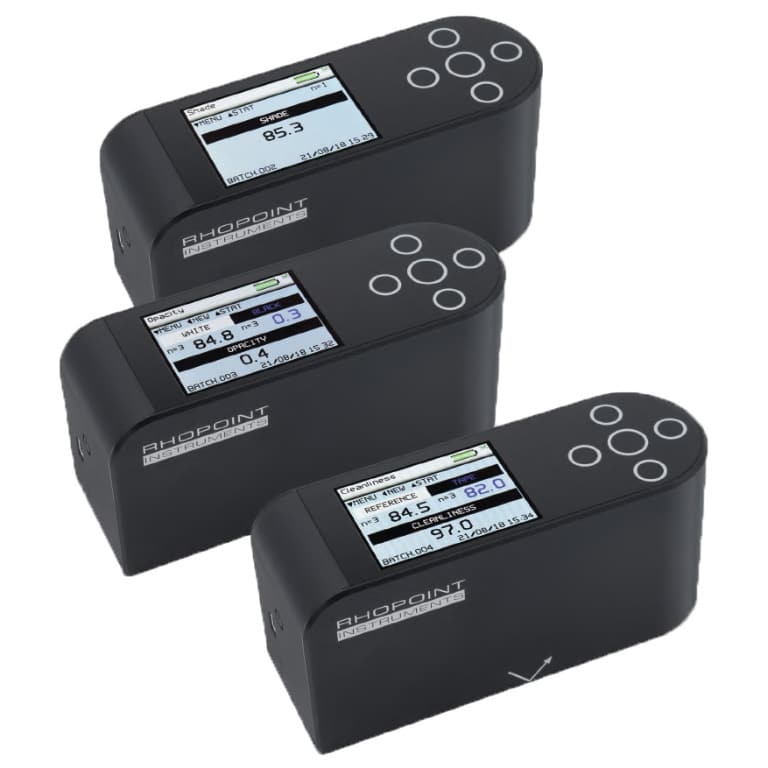
Novo shade dup plus x3

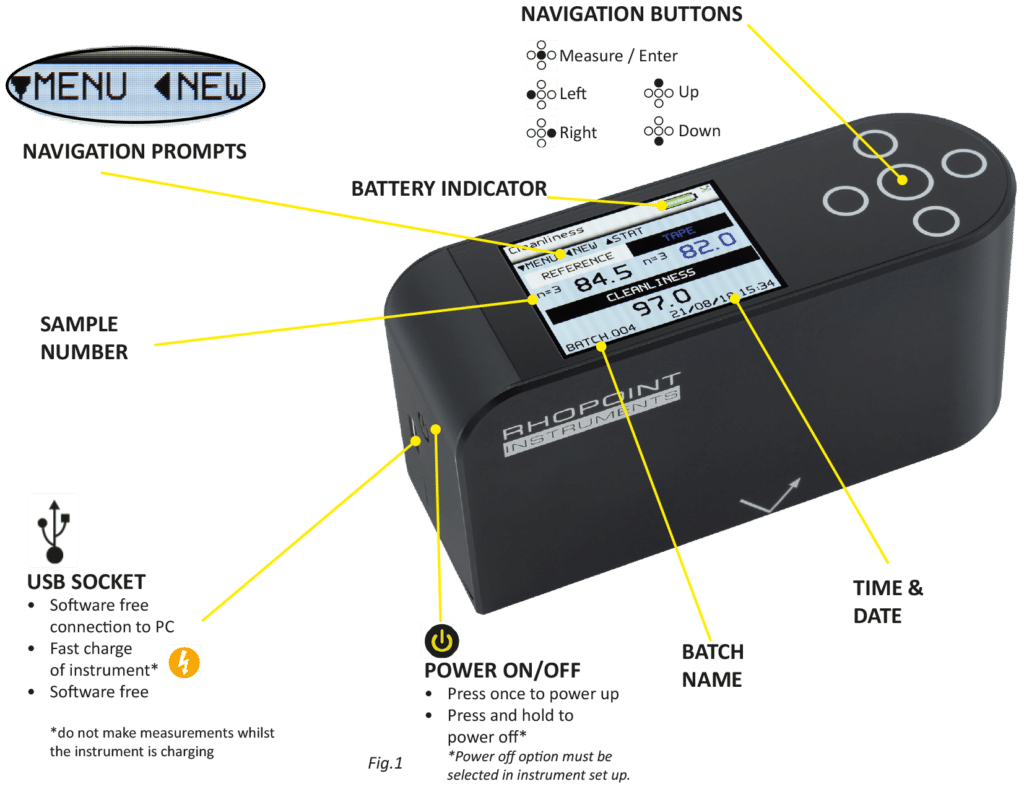
Instrument Controls

A detailed product manual can be found on the USB supplied with the instrument.
Or it can be downloaded from: www.rhopointinstruments.com/help-services/resources/

Basic Operations

Navigation

  • Available navigation options are displayed as prompts on the top left of every screen
  • Use the indicated button to access required menus and options
  • Press left button twice to return home from any menu.

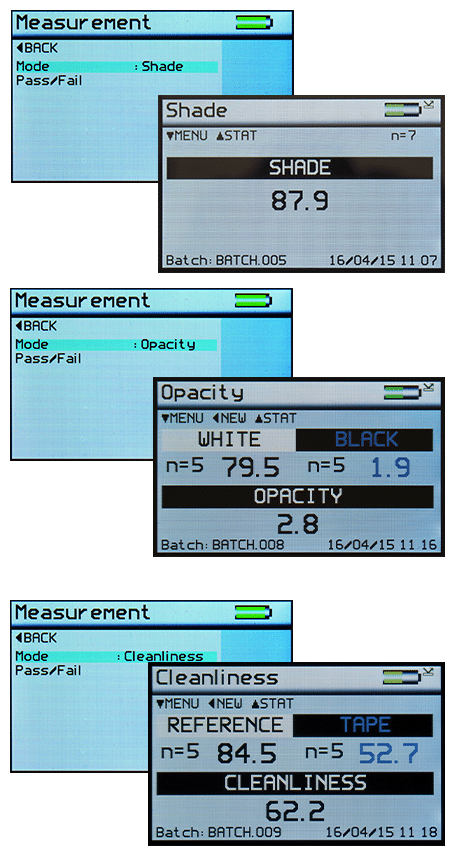
Measurement: Shade

  • Place instrument on surface to be measured
  • Press central button to take measurement(s)

Measurement: Opacity

  • Place instrument on sample over white substrate to be measured
  • Press central button to take a measurement(s)
  • Place instrument on sample over black substrate to be measured
  • Press central button to make measurement(s)

Opacity is automatically calculated and displayed; the value updates as more measurements are made.

Measurement: Cleanliness

  • Fix reference and contaminated reference to white substrate
  • Place instrument over substrate and reference
  • Press central button to take a measurement(s)
  • Press right button and position instrument on contaminated substrate (TAPE)
  • Press central button to make measurement(s)

Cleanliness is automatically calculated and displayed; the value updates as more measurements are made.

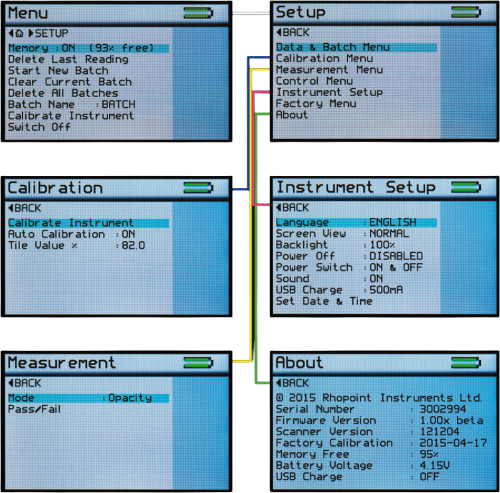
Auto Calibration*

  • Ensure the calibration tile is clean and undamaged
  • Optics should also be checked for cleanliness
  • Place the instrument on the tile holder
  • Press the central button
  • Follow the on-screen prompts

* Auto calibration must be enabled. MENU > SETUP > CALIBRATION MENU

RECALIBRATION
Rhopoint recommend that the Rhopoint IQ Flex 20 should be regularly serviced and calibrated. This will ensure reliable, accurate and consistent measurements are given. For more information or to book a service / calibration please visit: www.rhopointinstruments.com/help-services/calibration-servicing/
Advanced Operations

Navigation

  • Available navigation options are displayed as prompts on the top left of every screen
  • Use the indicated button to access required menus and options
  • Press left button twice to return home from any menu.

Data Transfer

  • Connect instrument to PC via USB cable
  • Open ‘DUO-PLUS’ USB drive
  • Open ‘DATA’ folder
  • Each stored batch has an individual folder
  • Batch Statistics are stored as ‘Stats.csv
  • Individual readings are stored separately in .csv format
  • A summary of all measured parameters for each reading is stored as ‘summary.csv’

Instrument Settings

qsg-novo-shade-duo-instrument-settings-infographic-english
NB. Not all screens are available in portrait orientation, refer to manual for further information
quick-report-app-logo-all-white

Quick Report App Connection

The Rhopoint Quick Report app instantly transforms your measurement data into clear, professional, branded reports directly from your instrument. It saves time, reduces errors and lets you share results with confidence in just a few taps.
  1. Open the Rhopoint Quick Report App in Google Chrome or on a compatible mobile device
  2. On the instrument, ensure Bluetooth is switched on and set the BT mode to DATA
  3. In the app, press the pairing/link button in the top right-hand corner
  4. Select Connect from the drop-down menu
  5. Select the instrument from the available devices
  6. When the connection button turns green, the instrument is connected and the app is ready to receive measurements
  7. Take measurements on the instrument *
  8. Received readings will be displayed in the app for review and reporting

* For full instructions on installation, device connection, measurement transfer, data export and report creation, refer to the Rhopoint Quick Report App Manual.

The Quick Report App is available for Windows, Mac, Linux, Android and iOS; it can be run in Google Chrome or installed on a compatible device. On first connection, users are prompted to register and activate the included app subscription.

How Can We Help?

If you have a question, need more information, or would like to discuss your requirements, simply fill out this contact form and we’ll be in touch shortly.