
Demo Mode
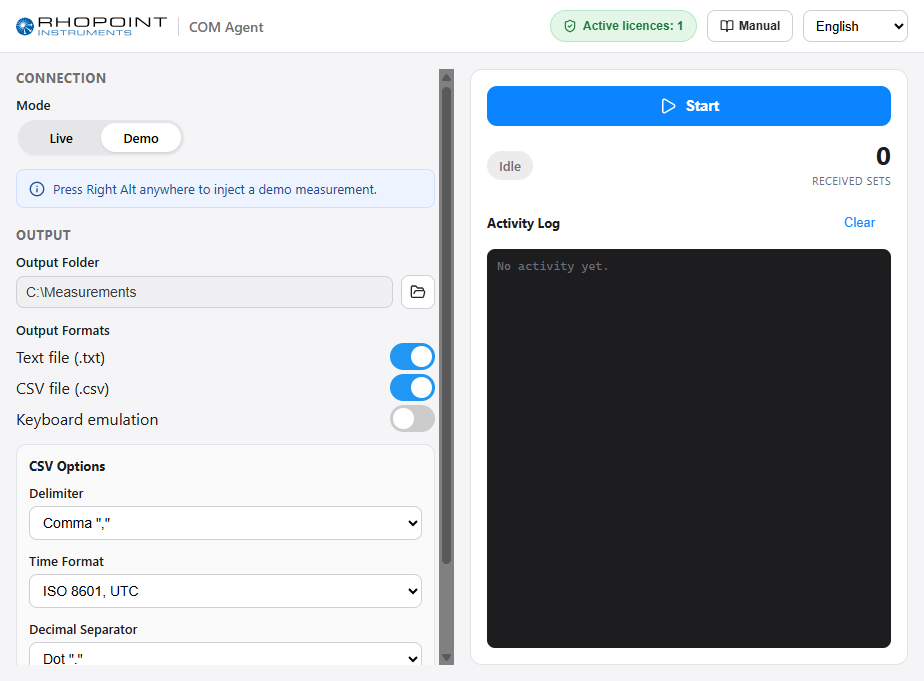
Demo mode lets you try COM Agent without an instrument connected. Instead of reading from a serial port, COM Agent generates a realistic demo measurement on demand — useful for learning the application, testing your output folder or keyboard setup, or giving a demonstration.
Using demo mode
- Set Mode to Demo in the Connection section. The COM port and baud settings disappear — they are not needed.
- Choose your output formats and, if desired, keyboard options, exactly as in live mode.
- Press Start.
- Press the Right Alt key anywhere — even in another application — to inject a demo measurement.
Each press of Right Alt produces one complete demo measurement, which is then written and/or typed according to your output settings, just like a real reading.
Demo mode is the quickest way to verify your keyboard emulation setup: set Mode to Demo, enable keyboard output, click into a spreadsheet, press Start, and tap Right Alt — the values appear in the cells.