
Licensing
COM Agent needs a valid licence to capture live measurements from an instrument. Demo mode always works without a licence, so you can explore the application and test your output and keyboard setup at any time.
Your licence status is always visible in the top-right of the window:
- A green Active licences: N badge means live capture is unlocked.
- A red No active licences badge means only demo mode is available.
How licences work
A COM Agent licence can be bound in one of two ways:
- To this computer (Host ID) — unlocks live capture on this PC, for any connected instrument.
- To a device serial number — unlocks only the measurements coming from that specific instrument, on any PC. Use this when a licence should follow an instrument rather than a computer.
Requesting a licence
- Click the licence badge (or Add licence) in the top-right to open the Licence Manager.
- Copy your Host ID with the copy button next to it. For a device-bound licence, note your instrument's serial number instead.
- Send the Host ID (or serial number) to Rhopoint Instruments to obtain your licence file.
Importing a licence
- Open the Licence Manager and click Import Licence….
- Select the licence file you received (
.lic,.txtor.json). You can select several files at once. - The licence appears in the list and the badge turns green — live capture is now unlocked.
Managing licences
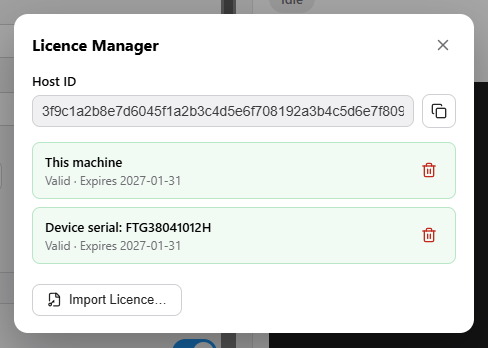
The Licence Manager lists every installed licence with:
- What it is bound to — This machine, Device serial: …, or Any machine.
- Its status and expiry — for example Valid · Expires 2027-01-31.
Use the trash icon next to a licence to remove it.
If you press Start for live capture without a valid licence, COM Agent shows a message and does not start. Either import a licence, or switch Mode to Demo.