
Output Formats
COM Agent can write each completed measurement to a file. Choose an Output Folder and tick one or more Output Formats. The formats can be combined freely.
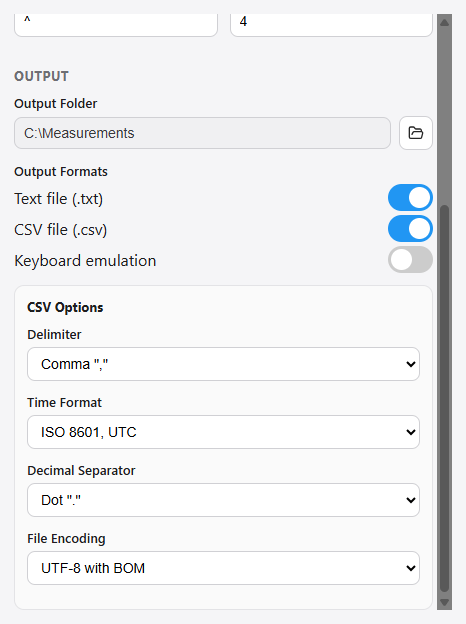
Output folder
Click Browse… next to Output Folder and choose where files should be written. Every measurement creates a new file with a unique, timestamped name, so nothing is ever overwritten:
2025-10-11T11-03-56Z-00007-3f9c1a2b-….csv
The name contains the UTC timestamp, a running counter and a unique identifier.
Formats
| Format | What it produces |
|---|---|
| Text file (.txt) | The raw data exactly as received from the instrument, with no processing. Works for every instrument. |
| CSV file (.csv) | A structured spreadsheet file with named columns and metric units. Requires a recognised data format (currently the FT3 "print all samples" thickness format). |
| Keyboard emulation | Types the values into another application instead of writing a file — see Keyboard Emulation. |
You can enable several formats at once. For example, tick Text and CSV to keep a raw archive alongside a structured file, or tick CSV and Keyboard to file the data and type a value into your QA system.
CSV export options
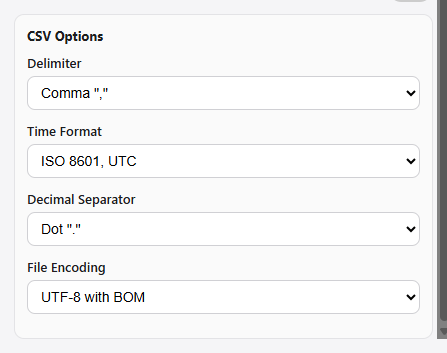
When CSV is enabled, a CSV Options panel appears with four settings that control how the file is written. COM Agent chooses sensible defaults from your language and region, so in most cases you can leave them as they are.
| Option | Choices | Effect |
|---|---|---|
| Delimiter | Comma "," · Semicolon ";" · Tab "→" | The character placed between columns. |
| Time Format | ISO 8601, UTC · ISO 8601, Local | Format of the Timestamp column: UTC (e.g. 2025-10-11T11:03:56Z) or local time with offset (e.g. 2025-10-11T13:03:56+02:00). |
| Decimal Separator | Dot "." · Comma "," | The decimal mark used for numeric values. Dates and identifiers are never changed. |
| File Encoding | UTF-8 · UTF-8 with BOM | Whether a byte-order mark is written at the start of the file. A BOM helps some spreadsheet programs (for example Excel) detect UTF-8 and show the µm headers correctly. |
Delimiter and Decimal Separator default to your region's convention: regions that separate list values with a semicolon (most of Europe) start with Semicolon + comma decimal, others (for example English) with Comma + dot decimal. This lets the file open cleanly in your local spreadsheet program with a double-click. Once you change a setting, your choice is remembered.
CSV structure
For the FT3 thickness format, COM Agent produces one row per individual sample, together with the summary statistics and instrument metadata. Units are given in micrometres (µm).
| Column | Example | Meaning |
|---|---|---|
| Index | 1 | Sample number within the set |
| Measurement (µm) | 1090.9 | The individual sample reading |
| Min (µm) | 1088.4 | Minimum of the set |
| Max (µm) | 1090.9 | Maximum of the set |
| Mean (µm) | 1089.4 | Mean of the set |
| StdDev (µm) | 0.990 | Standard deviation of the set |
| Template | 10 | The instrument data format |
| Device_ID | FTG38041012H | Instrument serial / ID |
| Test_Date | 2025-10-07 | Date of test (ISO 8601) |
| Calibration_Date | 2025-10-11 | Last calibration date |
| Test_Time | 11:03:56 | Time of test |
| Sample_Count | 5 | Number of samples in the set |
| Timestamp | 2025-10-11T11:03:56Z | When COM Agent received the set, in the chosen Time Format |
The instrument's own Test_Date / Test_Time come from the device clock and have no time zone. The Timestamp column is the moment your PC received the set, so it reflects the Time Format option (UTC or local).
If COM Agent receives data it does not recognise as a structured format, the CSV file is skipped for that measurement and a note appears in the activity log. The raw TXT output (if enabled) is always written regardless of format.