
Capturing Measurements
Once you have configured the connection and chosen your output, you are ready to capture.
Start and stop
Press Start (top right). COM Agent opens the serial port and begins listening. The button turns into Stop; press it to end the session and release the port.
While capture is running, the configuration on the left is locked so it cannot be changed mid-session.
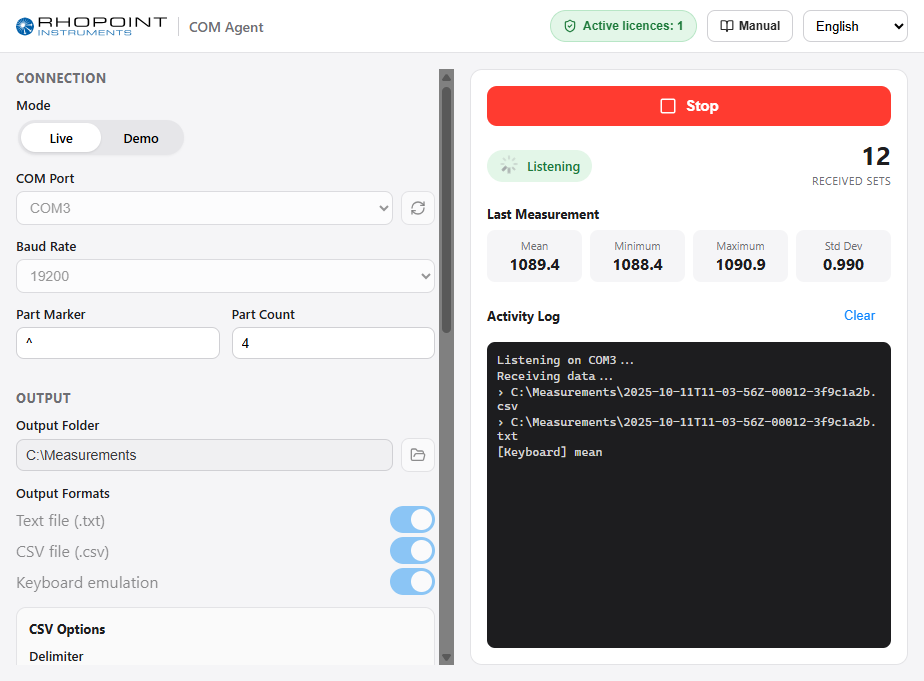
The live panel
The right-hand side shows what is happening in real time:
| Element | Meaning |
|---|---|
| Status badge | Idle before you start, Listening while capturing, Error if the connection fails. |
| Received Sets | A running count of complete measurements captured in this session. |
| Last Measurement | The Mean, Minimum, Maximum and Std Dev of the most recent measurement (for recognised formats). |
| Activity Log | A scrolling list of events: data received, files written (with their full path), keyboard output, and any warnings. Use Clear to empty it. |
Taking a measurement
- Press Start in COM Agent.
- Trigger a measurement on the instrument as you normally would.
- The activity log shows "Receiving data…" followed by the path of each file written, or a "[Keyboard]" entry if keyboard emulation is enabled.
- The Received Sets counter increases and Last Measurement updates.
If the status changes to Error (for example, the cable is unplugged or the instrument is switched off), stop the session, check the connection, and start again.