
Running Compatibility Checks
The Checks tab is the heart of Symmetron. You select the Rhopoint product you intend to use, and Symmetron runs a set of read-only checks to confirm that this PC meets every technical requirement for that product.
Select your product
When you open Symmetron, the Checks tab shows the product picker. Each tile represents a Rhopoint product or product combination.
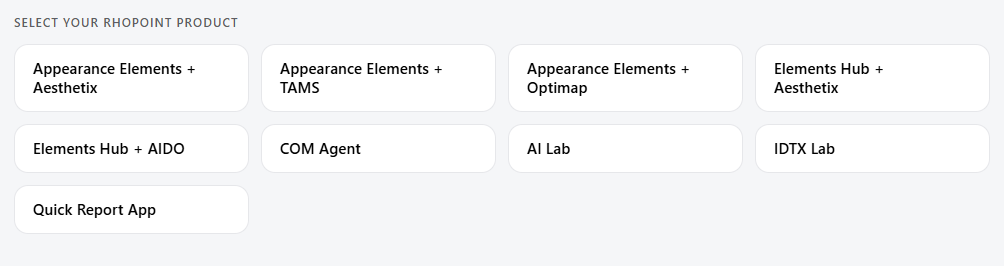
Click the tile that matches the product you plan to install. Symmetron immediately starts running the checks for that product.
The available products are:
- Appearance Elements + Aesthetix
- Appearance Elements + TAMS
- Appearance Elements + Optimap
- Elements Hub + Aesthetix
- Elements Hub + AIDO
- COM Agent
- AI Lab
- IDTX Lab
- Quick Report App
Read the results
As the checks run, results appear in the Results list below the picker. A summary bar at the top counts how many checks passed, raised a warning, failed, or returned information.
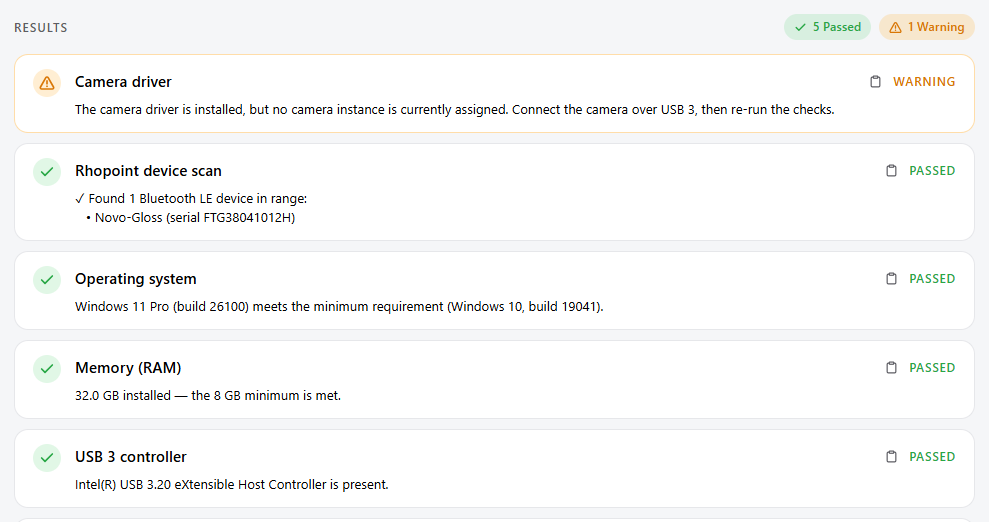
Each result row shows:
- A status icon — pass, warning, fail, or information.
- The name of the check (for example Operating system, USB 3 controller, Camera driver).
- A short explanation, and details such as the value that was found.
The results are sorted so that the most important findings — failures and warnings — appear at the top.
| Status | Meaning |
|---|---|
| Pass | The requirement is met. No action needed. |
| Warning | The PC will probably work, but something is not ideal and may cause problems. |
| Fail | A requirement is not met. The product is unlikely to work until this is resolved. |
| Info | Background information, not a pass or fail. |

Re-run the checks
After you change something on the PC — for example after plugging in a device, installing a driver or freeing up memory — you can run the checks again.
- Click Change in the summary bar to pick a different product, or
- Click Re-run to run the same product's checks again.

Send the results to Rhopoint
If a check fails and you would like help, click Send to Rhopoint below the results to forward the check report to Rhopoint Support. See Sending Diagnostics to Rhopoint for details.
If you see the message "No checks matched this profile on the current platform", the selected product is not supported on this PC's operating system.