
Sending Diagnostics to Rhopoint
Whatever tab you are on, Symmetron can bundle everything it knows about the PC into a single diagnostic package and send it to Rhopoint Support. This gives the support team the full picture in one step.
Header actions
The buttons in the top-right of the window are available from every tab:

- Send diagnostics — builds a complete diagnostic bundle (system information, the latest check results, installed licences, connectivity and the application log) and opens the send dialog.
- Save — builds the same bundle but saves it to a ZIP file on your PC, for example to attach to an email yourself.
- Manual — opens the Symmetron manual in your web browser.
The send dialog
When you choose to send something to Rhopoint — from the header, from the Checks results, or from the Diagnose tab — the same dialog appears.
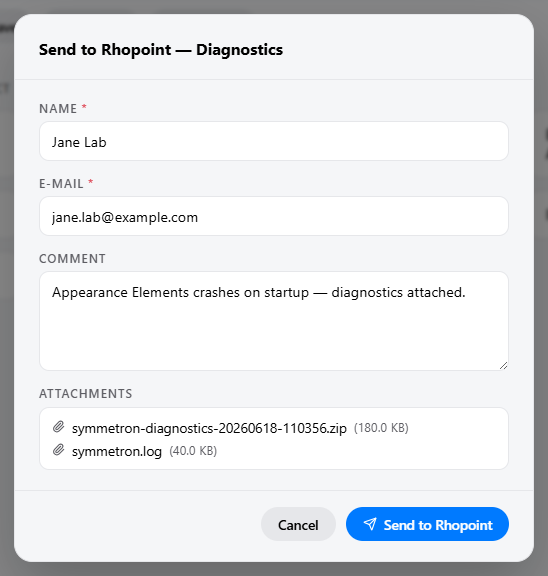
Fill in:
- Name (required) — your name.
- E-mail (required) — your e-mail address, so Rhopoint can reply.
- Comment — a short description of the problem or what you are sending.
The attachments included in the bundle are listed at the bottom. Click Send to Rhopoint to upload.
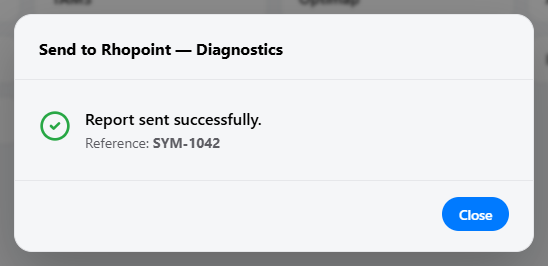
When the upload succeeds, Symmetron shows a reference number. Quote this number in any follow-up with Rhopoint Support so they can find your report quickly.
Your name and e-mail are remembered for next time. The comment and attachments are only sent when you click Send to Rhopoint.