
Esta página aún no está traducida y se muestra en inglés.
Diagnose
The Diagnose tab gathers troubleshooting information from a Rhopoint application that is already installed on the PC. When an application crashes or misbehaves, this is the fastest way to collect everything Rhopoint Support needs to investigate.
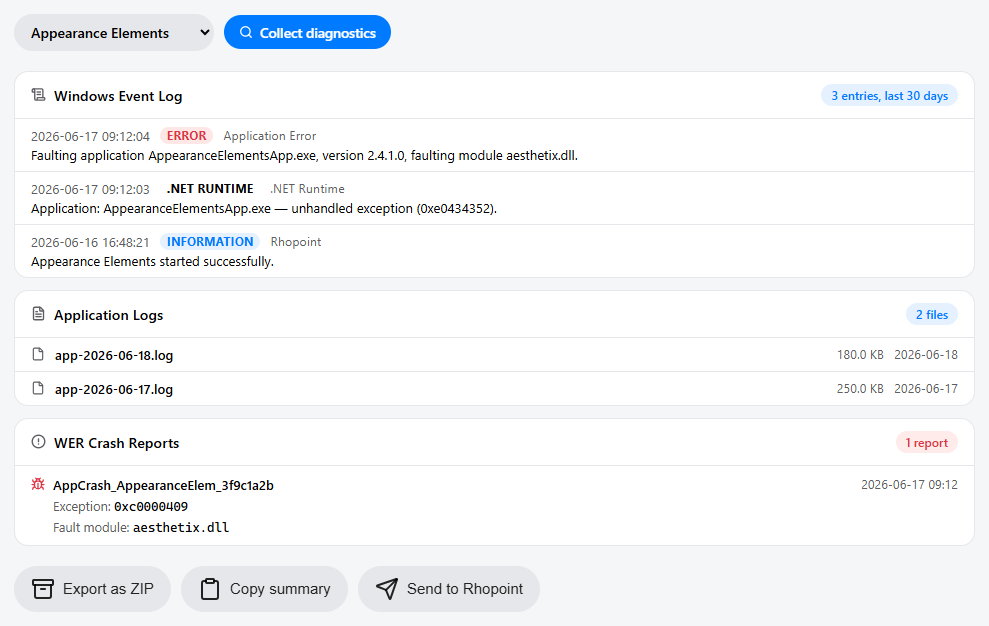
Choose an application
Use the drop-down at the top to choose which application to diagnose:
- Appearance Elements — collects Appearance Elements logs and related events.
- Aesthetix Kernel — collects information about the Aesthetix measurement engine.
- Custom application… — click Browse… to select any other application's executable (
.exe).

Collect diagnostics
Click Collect diagnostics. Symmetron gathers the following, all read-only:
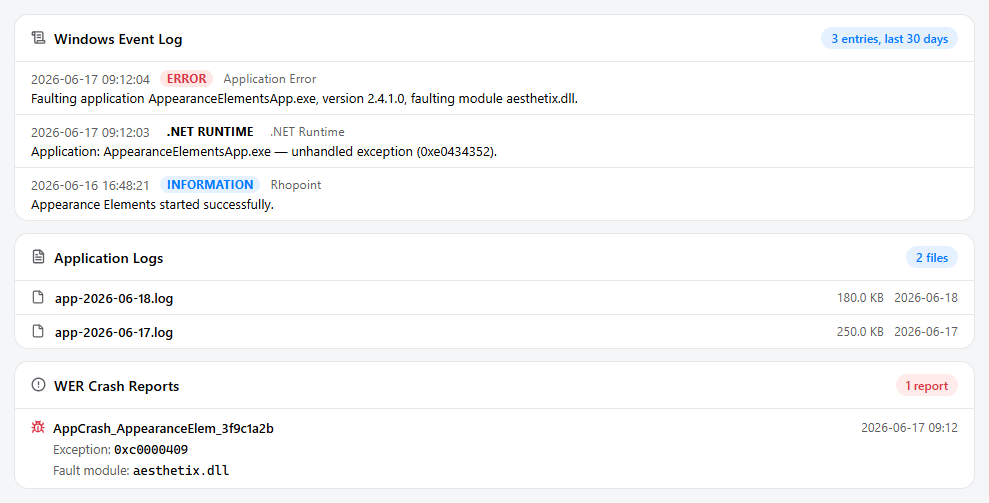
- Windows Event Log — relevant entries from the last 30 days. Click Show all entries to expand the full list.
- Application Logs — the log files written by the selected application, with their size and date.
- WER Crash Reports — Windows Error Reporting records, including the exception code and faulting module where available.
Share the results
Once the information has been collected, three actions appear at the bottom:

- Export as ZIP — save everything to a ZIP archive on your PC, for example to attach to an email.
- Copy summary — copy a text summary to the clipboard.
- Send to Rhopoint — send the collected diagnostics directly to Rhopoint Support. See Sending Diagnostics to Rhopoint.