
MCP Server
The MCP Server tab lets an AI assistant connect to Symmetron and inspect this PC for you. Once you start the server, an AI assistant — such as Claude or a local model — can use Symmetron's read-only diagnostic tools to examine the machine and help work out whether it meets a Rhopoint product's requirements, and what to change if it does not.
This is an optional, advanced feature aimed at IT staff and integration partners who already use an AI assistant. If you just want to check a PC yourself, use the Checks tab instead.

The server is off until you start it, only listens on this PC, and — like the rest of Symmetron — only ever reads information. It never changes anything on your machine.
Starting the server
- Open the MCP Server tab.
- Click Start server.
- The status changes to Running and a server address appears, for example
http://127.0.0.1:8787/mcp.
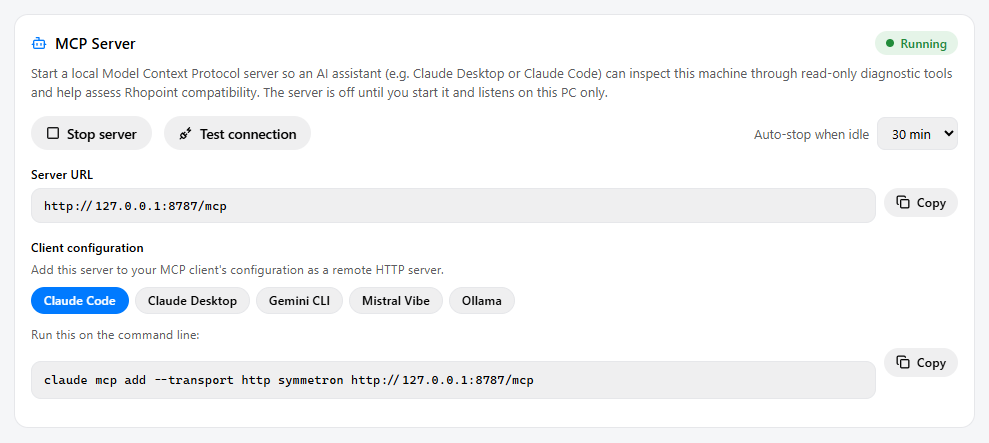
To stop it again, click Stop server. The server also stops automatically when you close Symmetron, and after a period of inactivity (see Auto-stop below).
Connecting your AI assistant
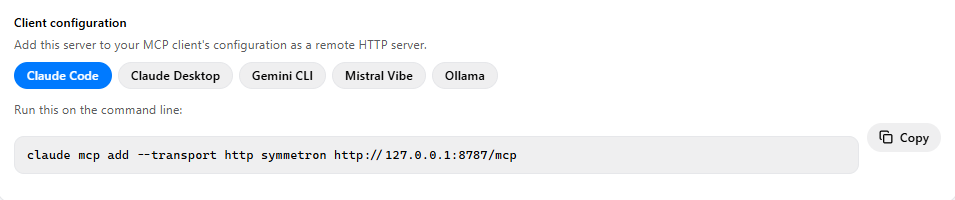
Choose your AI client under Client configuration. Symmetron shows the exact configuration to copy for each one — including the live address — so you can paste it straight into your client.
| Client | How it connects |
|---|---|
| Claude Code | A single command line you can run to add the server. |
| Claude Desktop | A snippet for claude_desktop_config.json. |
| Gemini CLI | A snippet for ~/.gemini/settings.json. |
| Mistral Vibe | A snippet for ~/.vibe/config.toml. |
| Ollama | A snippet for the MCPHost bridge (~/.mcphost.json), since Ollama has no built-in MCP support. |
The AI client must run on this same PC, because the server is only reachable locally. Cloud assistants such as ChatGPT or Perplexity cannot reach it and are therefore not supported.
What the AI assistant can see
While the server is running, the assistant can use the following read-only tools:
| Capability | What it provides |
|---|---|
| System information | Operating system, processor, memory, storage, graphics and USB controllers. |
| Run compatibility checks | Runs the checks for a chosen Rhopoint product and returns each result. |
| Connectivity | Whether the Rhopoint online services are reachable from this PC. |
| Installed licences | The Rhopoint licences installed on this PC, with expiry and validity. |
| Diagnostic report | The full Symmetron diagnostic report for this PC. |
| Recent logs | The most recent entries from Symmetron's log file. |
There is also a guided "assess compatibility" instruction the assistant can use to work through a complete check for a given product and summarise the problems and recommendations.
Privacy and safety
The server is designed to be safe, but it is worth understanding what it does:
- Read-only. It only reads diagnostic information and never changes this PC.
- Local only. It is reachable only from this PC and has no password. While it is running, any program on this PC can query it — so only run it when you intend to.
- Your data leaves with the assistant. Information the AI reads — such as the machine name, hardware ID and installed licences — is sent on to your AI client's provider, exactly as if you had typed it into that assistant yourself.
Auto-stop
To make sure the server is never left running by accident, Symmetron stops it automatically after a period with no activity. Use the Auto-stop when idle menu to choose the period (5, 15, 30 or 60 minutes), or set it to Off to keep the server running until you stop it yourself. Your choice is remembered.
Test connection
Click Test connection to confirm the running server is reachable and working. Symmetron checks the server from within the app and reports how many tools are available — a quick way to make sure everything is set up before you connect your assistant.
Activity
The Activity list shows each server event and every request the assistant makes, with a timestamp — so you can always see what was queried while the server was running. Click Clear to empty the list.